> For the complete documentation index, see [llms.txt](https://docs.pletor.ai/llms.txt). Markdown versions of documentation pages are available by appending `.md` to page URLs; this page is available as [Markdown](https://docs.pletor.ai/build-your-system/nodes/google-drive.md).
# Google Drive
The Google Drive nodes let your flows interact with files stored in Google Drive — both reading files as inputs and writing generated outputs back to Drive.
### Available nodes
| Node | What it does |
| ---------------------------- | -------------------------------------------------------------------------------------------------- |
| **Import from Google Drive** | Search for and retrieve files from Google Drive to use as inputs in your workflow |
| **Export to Google Drive** | Push generated assets (images, videos, documents) from your flow directly to a Google Drive folder |
This is especially useful for **automated workflows** where you want generated assets to land in a shared folder automatically, or where source materials live in Drive and need to feed into your flow without manual upload.
### Example workflow: batch product image generation
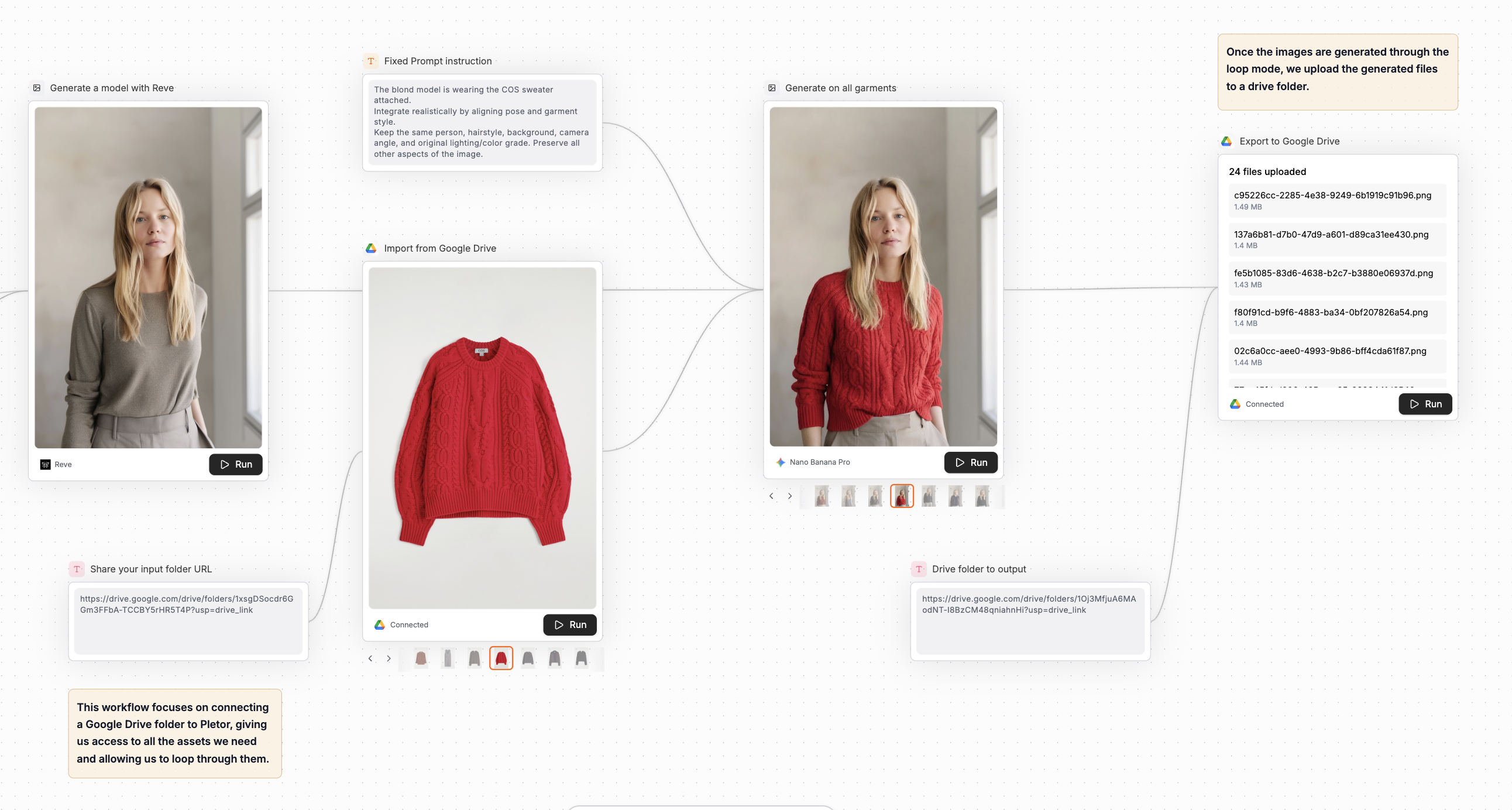
This workflow imports product photos from Google Drive, generates AI variations for each one, and exports the results back to Drive — fully automated.
**Flow:** Text Prompt (input folder URL) → **Import from Google Drive** (Loop Mode on) → Text Prompt (fixed prompt instructions) → **Generate Image** → Text Prompt (output folder URL) → **Export to Google Drive**
[→ Try this template flow](https://app.pletor.ai/flow/346c73f3-08ff-46eb-bc7e-3dc523977f33)
### Node configuration
#### Connecting Google Drive
Before using Google Drive nodes, you need to connect your Google account:
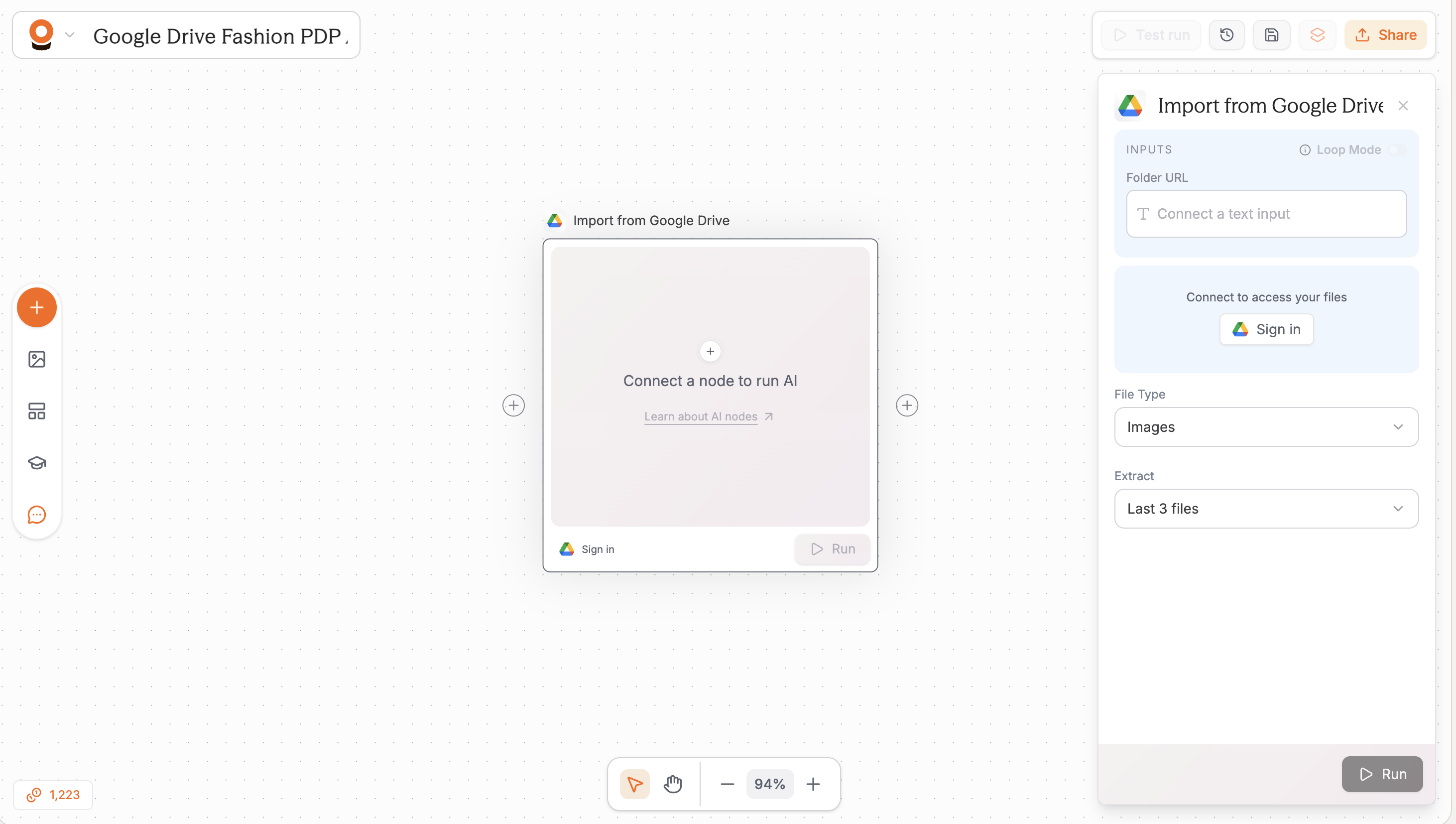
1. Add an **Import from Google Drive** or **Export to Google Drive** node to your canvas.
2. Click on the node to open its configuration panel.
3. Click the **Sign in** button with the Google Drive icon.
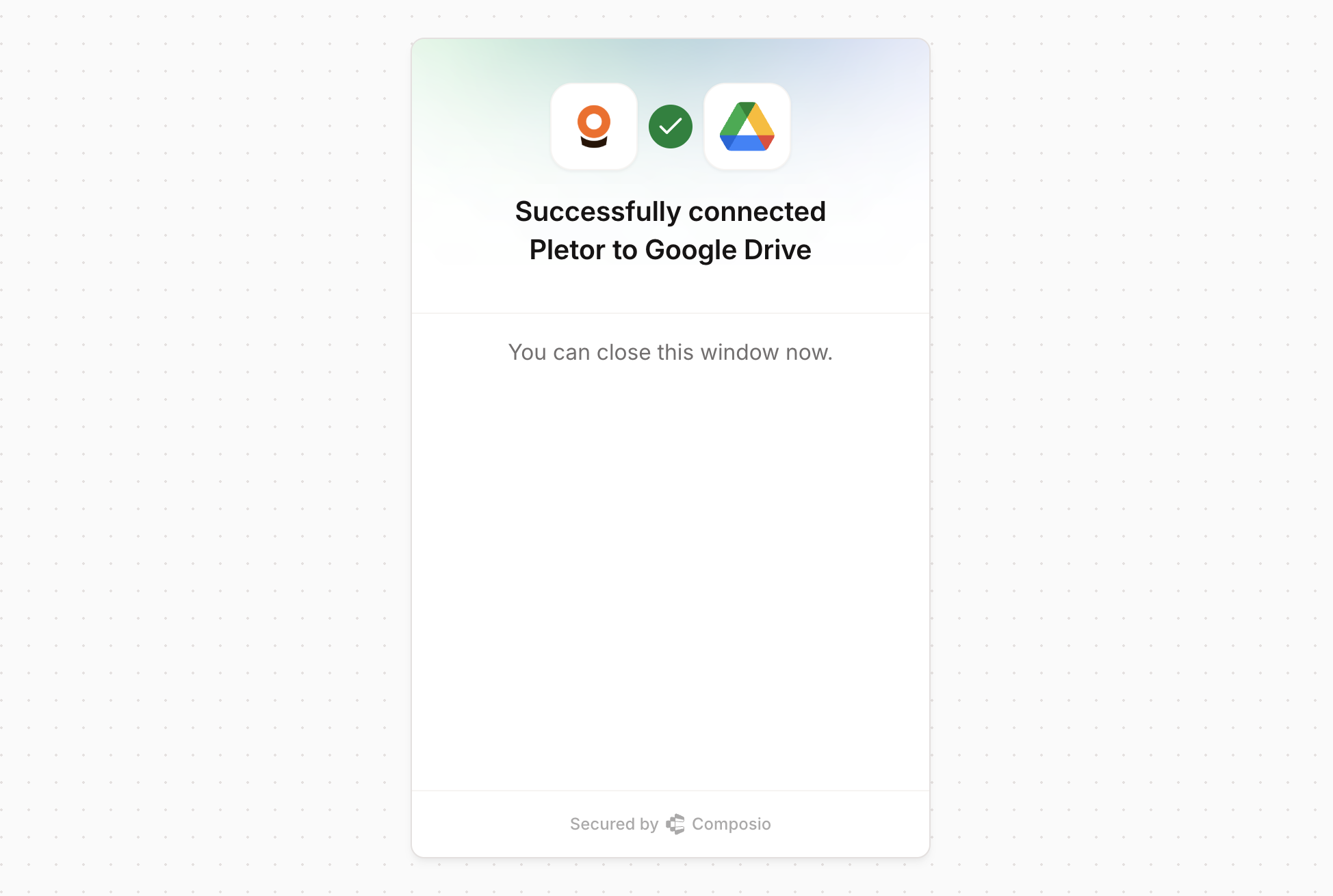
4. A Google authorization window opens — grant Pletor access to your Drive.
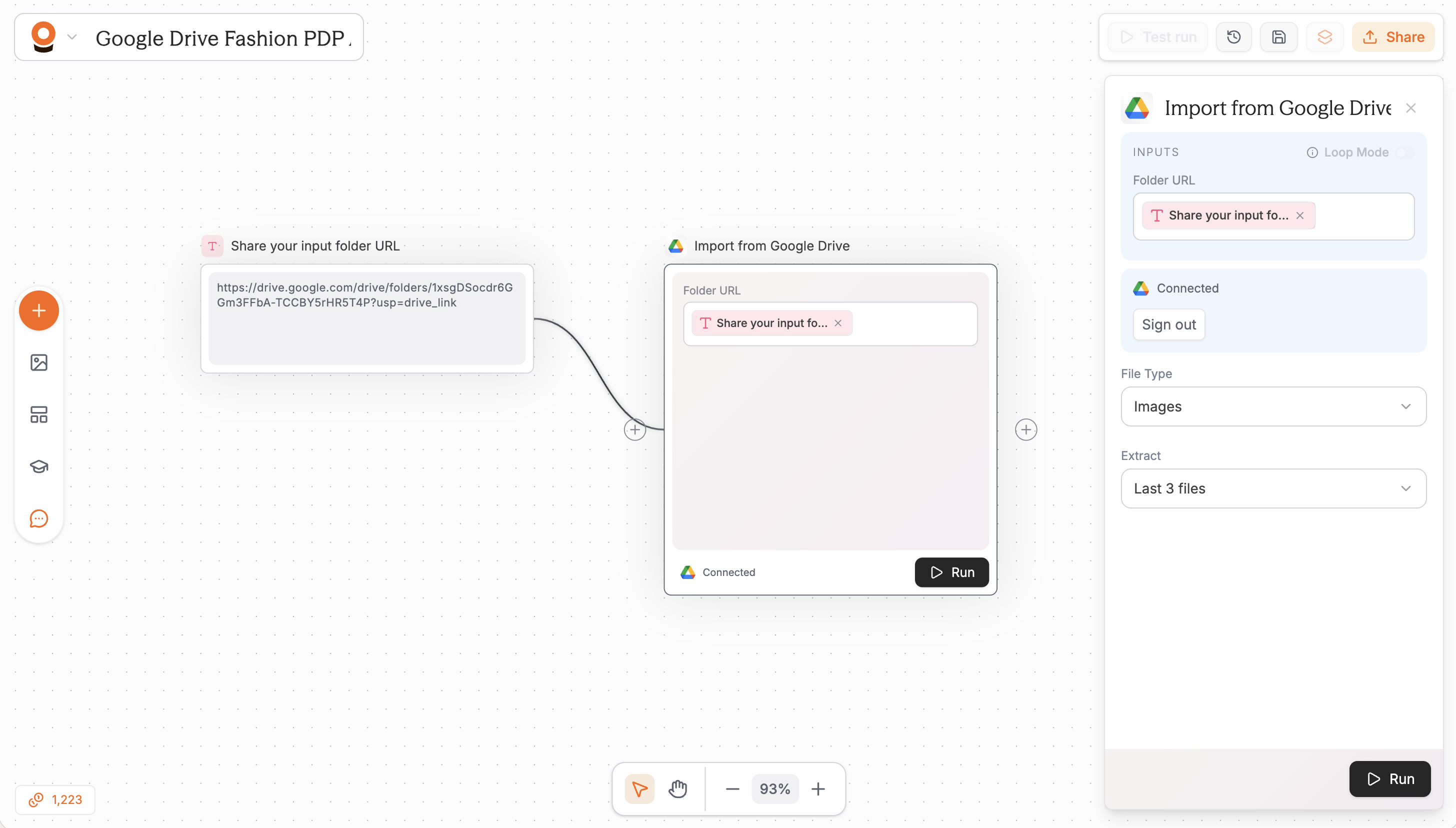
5. Once connected, the panel shows a green **Connected** status with a Sign out option.
The connection is secured by [Composio](https://composio.dev/) and persists across sessions — you only need to sign in once.
#### Parameters
**Folder URL**
The Google Drive folder URL to pull files from or use as a target folder. Connect a Text Prompt node containing the folder link, or paste it directly.
**File Type**
Filter by file type: Images, Videos, Documents, etc.
**Extract**
How many files to pull: Last 3 files, Last 5 files, Last 10 files, All files.
**Loop Mode**
When enabled, the node processes each imported file individually through the downstream chain — one at a time. Essential for batch processing workflows.
#### **Setting up import**
1. Add a **Text Prompt** node and paste your Google Drive folder URL (e.g., `https://drive.google.com/drive/folders/1xsgDSocdr6G...`).
2. Connect the Text Prompt output to the Import node's **Folder URL** input.
3. Set the **File Type** to match your source files (e.g., Images).
4. Set **Extract** to control how many files to pull.
5. Connect the Import node's output to your downstream AI nodes.
6. Hit **Run** — the node pulls files from Drive and passes them through your workflow.
#### Setting up Export
1. Add an **Export to Google Drive** node at the end of your workflow.
2. Connect your final AI node's output to the Export node's input.
3. Add a **Text Prompt** node with the destination folder URL and connect it to the Export node's **Folder URL** input.
4. Run your flow — generated files are automatically uploaded to the specified Drive folder.
The Export node shows a list of uploaded files with their filenames and sizes once the run completes.
***
### Tips
* **Google Drive + Loop Mode is the key to batch processing.** Import a folder of source files, process each one through your AI chain, and export the results — all in one run.
* **Use separate Text Prompts for input and output folder URLs.** This keeps your flows clean and makes it easy to change source or destination folders without touching the rest of the chain.
* **Make sure your Drive folder is shared or accessible** to the Google account you connected. Private folders that aren't shared with your connected account will return empty results.